User Guide
Preface
PullerType is a comprehensive code review management platform that enhances the process of peer-reviewing code (code reviews).
We found pain points in the existing code review process when using platforms such as GitHub. Various pain points stemmed from the design of these platforms not being as focused on the code review part of the software development lifecycle. With PullerType, we created an application solely dedicated to improving every part of the code review process with innovative new features and quality-of-life improvements all around. Our app provides a revamped UI of existing features, a web-based merge engine, and AI-driven insights.
PullerType is dedicated to an audience for software developers, who collaborate in a team and review pull requests. Our platform consolidates pull requests across all relevant repositories for a software developer, so they can easily perform a peer-review in any workspace.
Usage
Get Started
- If you want to use the app on your personal repositories, follow this link to install the GitHub app: https://github.com/apps/code-review-management/installations/select_target
- The GitHub app is required to view private repos or make any write requests using our app.
- Go to our app with this link: https://code-review-management-tool.vercel.app
- Go through the sign in process, allowing our GitHub app access to your account
- You will be launched into the dashboard where you can view all PR's that are connected to you in some way (authored by you, requested review from you, etc)
- All organizations and repositories visible to you will be listed on the left side window where you can filter out PR's for specific repositories. By default, all categories will be collapsed and all repositories will be unselected.
- To see its pull requests on the dashboard, expand a category on the sidebar to the left and select a repository's checkbox.
Features
Our product supports the following core features to perform a code review and sync to GitHub:
- Dashboard where users can keep track of the state of their pull requests and what they need to review.
- Pull request overview page where users can view core information about a single pull request.
- Changes page that displays a diff view for two versions of a file that was modified in a pull request. Allow comments on highlighted sections of the diff.
- Ability to propose changes that the author can accept or reject.
- Ability to add a review, approve changes, and merge the pull request.
- 3-way diff editor to resolve merge conflicts.
- AI feature that suggests a solution to a comment left by a reviewer. Users can edit suggestion content, save their edited suggestions, and commit the suggestion into the target region.
Functionalities
Dashboard repo filters
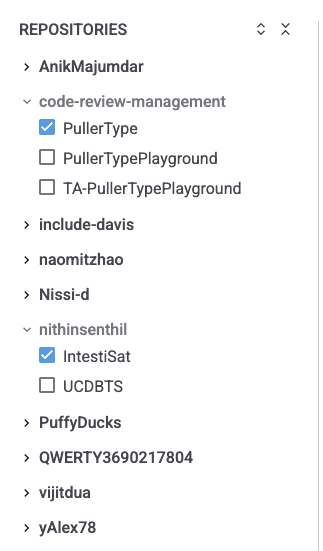
Each collapsed category represents a user or organization with repositories under its ownership.
- Try expanding/collapsing the category drop-downs to view available repositories in each category.
- Try selecting and deselecting repositories to show pull requests from only selected repositories.
Dashboard tab filters
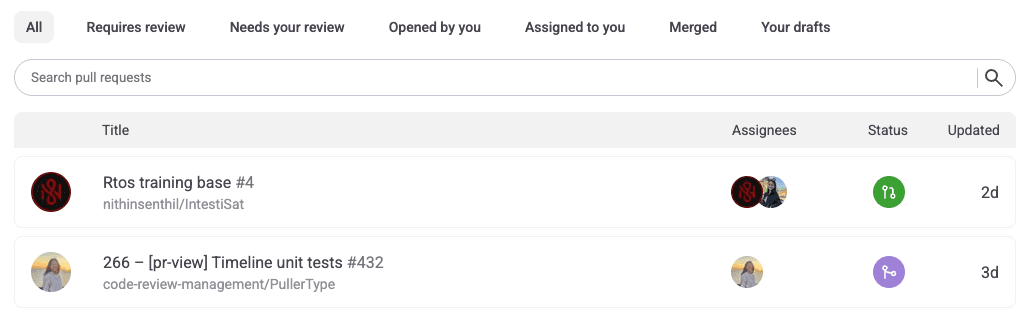
Try out the different filter options that run above the search bar. Note that there might be some loading time for the pull requests to populate when you first select a filter.
Pull request header

This header is displayed on the PR view page and the diff-view page.
- Leave a review with the “Add Review” button on the top right.
- Merge the pull request with the “Merge” button on the top right.
- When viewing the pull request page, you can click the “View Files” button on the top right to navigate to the diff-view page.
- When viewing the diff-view page, you can click the “View Pull Request” button on the top right to navigate to the pull request page.
Pull request page
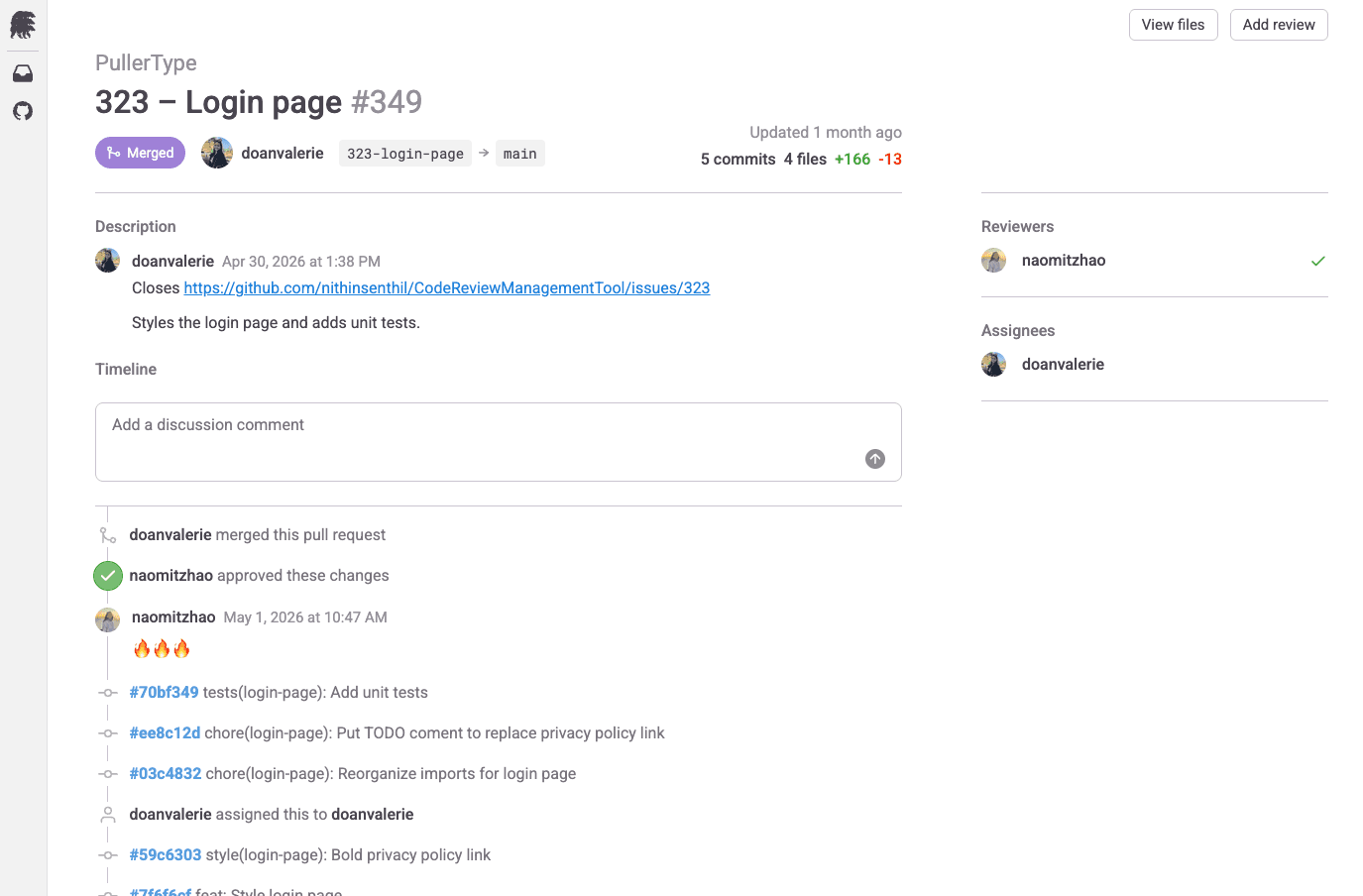
- Click on the branch names to copy them to clipboard.
- Leave a discussion comment. Note that all comment editors support markdown syntax.
- Click on a commit SHA to view the changes introduced by that commit.
Diff-view page
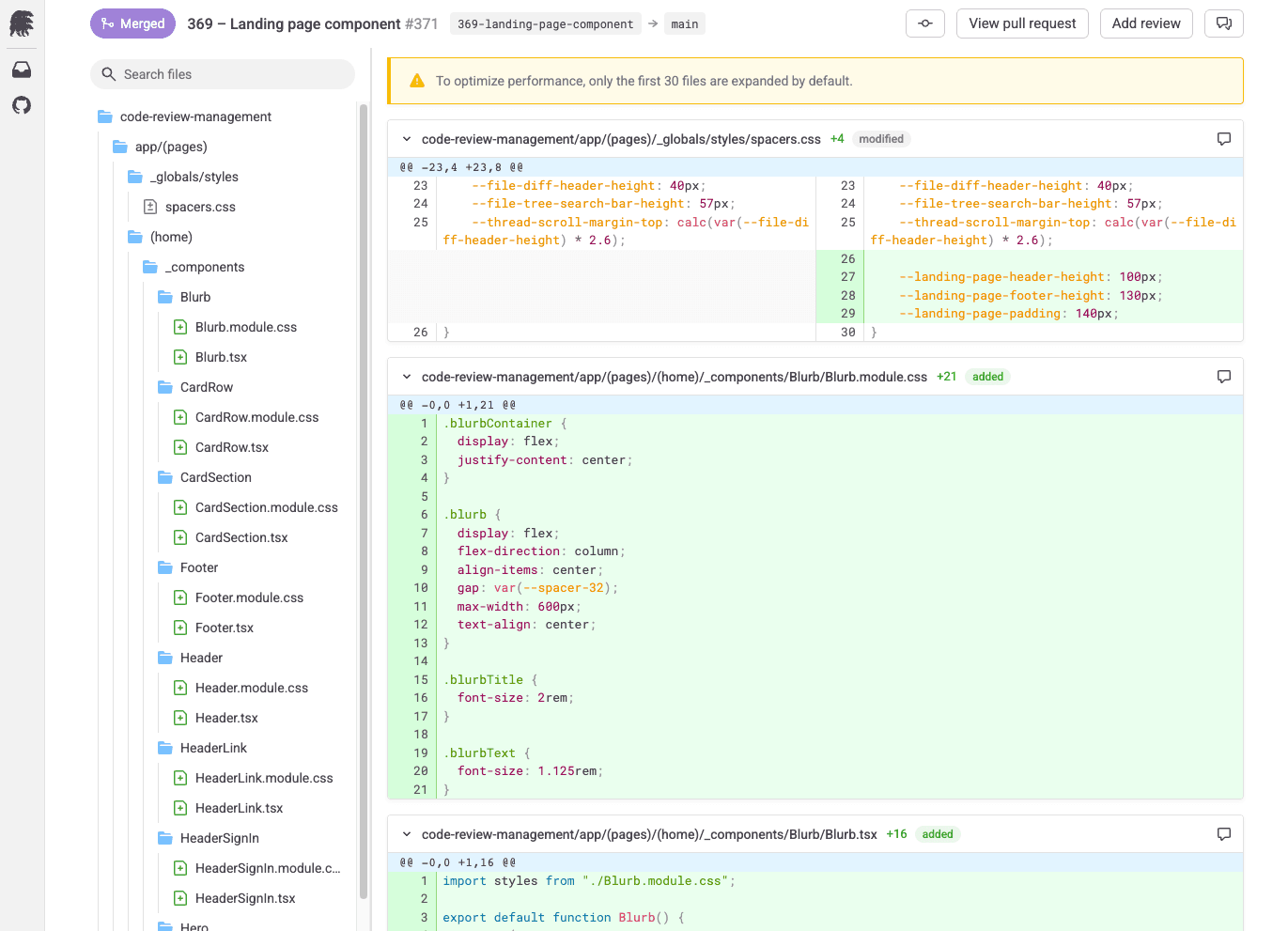
Comments
- To leave an inline comment on a diff, click and drag across the lines in the gutter.
- To leave a file-level comment on a diff, click the comment icon on the right side of the file-diff header.
- Respond to published comments by clicking the “Reply” option at the bottom of the thread.
- Comments made on the right-side of a file-diff will show a “Suggest” button at the bottom of the thread. Use it to leave a Gemini suggestion. This button is not available on deleted files or file-level comments.
Side panel
- To open the side panel, click the discussion icon on the top right side of the page header. The side panel displays two tabs. Click the “Comments” tab to view all PR comments. Click the “Timeline” tab to view the PR timeline.
- In the “Comments” tab of the side panel, click on the header of a thread to automatically scroll to that comment in its file-diff.
File-tree
- Click on a file in the file-tree to automatically scroll to its file-diff. Click on a folder in the file-tree to collapse/expand it.
- Use the file-tree search bar to find a file in the tree.
- Resize the file-tree by clicking and dragging the border.
File-diff header
- Copy a filename to your clipboard by clicking the path in the file-diff header.
- Collapse and expand a diff by clicking the chevron on the left side of the file-diff header.
Commit-viewing feature
- Click the commit symbol in the header to view the list of all commits in that PR. You can select any commit to view the changes that it introduces. There is also a “cumulative” mode if you would like to see the cumulative changes from the start of the PR up to that commit.
3 Window Merge Editor
To access this page, open a PR with a merge conflict. You will notice that the button that usually says “Merge” will now say “Resolve”. Clicking on this button will direct you to the merge editor page.
Tab-based file selection:
- The top of the file contains a head bar that depicts the name of each file. Clicking on the tab will change the conflict content to the file selected. When changing, it saves all information of the current state of the resolution including the scroll value, and the contents of each window.
Window View:
- There are 3 windows. The top left is the incoming content (the branch you are pulling). The top right is the current content (the content of the feature branch). The bottom is the base, which is content that gets merged and is composed of the changes merged from each branch, the non-conflicting contents of each branch, and any manual content added during resolution.
- Scrolling is synced between windows
- Only the base window is editable
Conflict Regions
- Each file contains at least one conflict region. The conflict region occupies the same relative location for each file, and it contains the conflicting content of each branch for the top two windows and their resolution in the bottom window. The regions are color coded to identify them easier.
- Each region contains a widget on top of it. The top two window's widget is used to quickly transfer the content of their region into the base version's respective region. These widgets are hidden if their content was already taken. The base window's widget is used to quickly delete a region's content. This widget is hidden if there is no content to return.
Merge Button
- Once a user is satisfied, clicking the merge button will write the base window's content into each respective file.
- Once merged, the branches parent will be updated, which resolves the conflict on GitHub's end as well
- While it's possible to merge file contents that still contain a conflict region (either because neither branch was selected, or the resolution is entirely manual), users will be warned in this case and can choose to override.
Gemini Suggestions
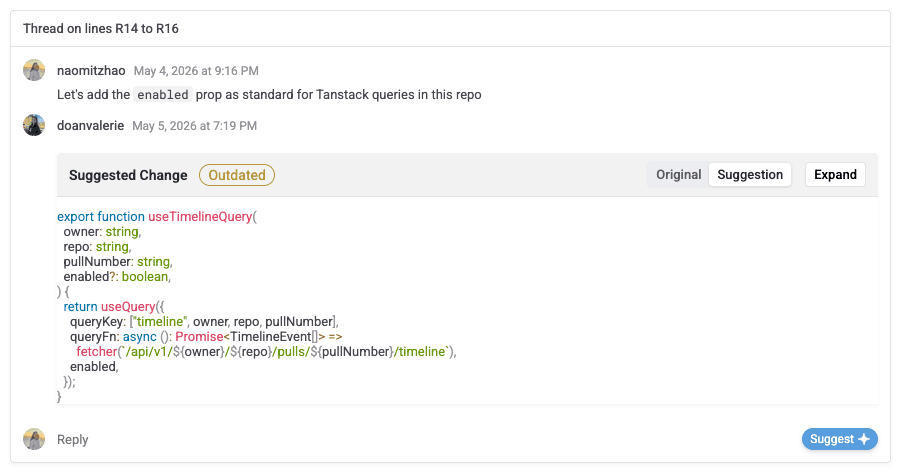
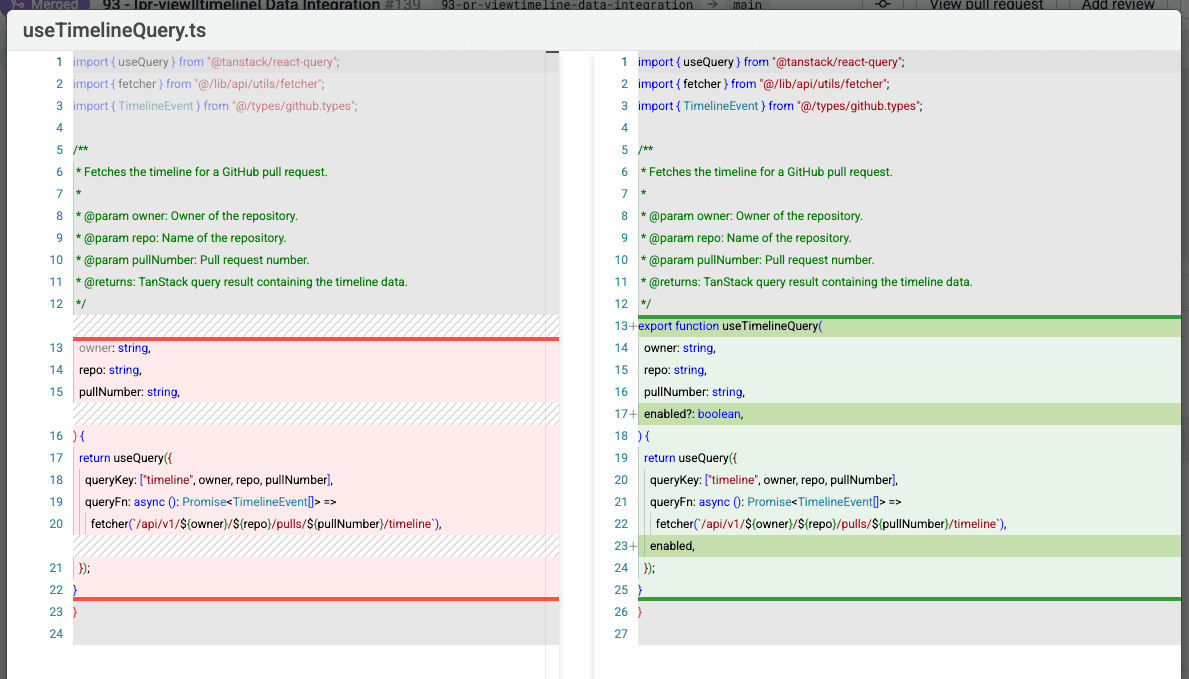
When a comment is left on the right side of a diff, you have the option to let Gemini generate a suggestion to address the comment. The suggestion can then be viewed in a diff view, updated, and saved as a commit directly from the web editor.
To try it out follow the following steps:
- Open a pull request in review and navigate to the files page
- On the right side of a diff, leave a ranged comment and leave helpful suggestions
- After the comment is posted, click the blue suggest button, Gemini will leave a reply to your comment
- Toggle between the original file contents and the suggestion to view what would be changed
- Click expand to see a full diff view of the suggestion
- Use the center gutter to resize the windows or reject suggestion changes
- Expand the suggestion region on the right side diff by hovering over the center gutter and clicking the green plus button. Text outside of the suggestion region is read only.
- Make changes to the suggestion and save them or commit them immediately
- Click outside the window to exit back to the diff view page
- Leave more comments and/or click the Suggest button again to generate more suggestions
